
iPhone Not Charging After Water Exposure — Troubleshooting Guide
iPhone won't charge after water exposure? Apple's moisture sensor has triggered a safety lockout. Here's how to fix it — and what Apple tells you not to do.
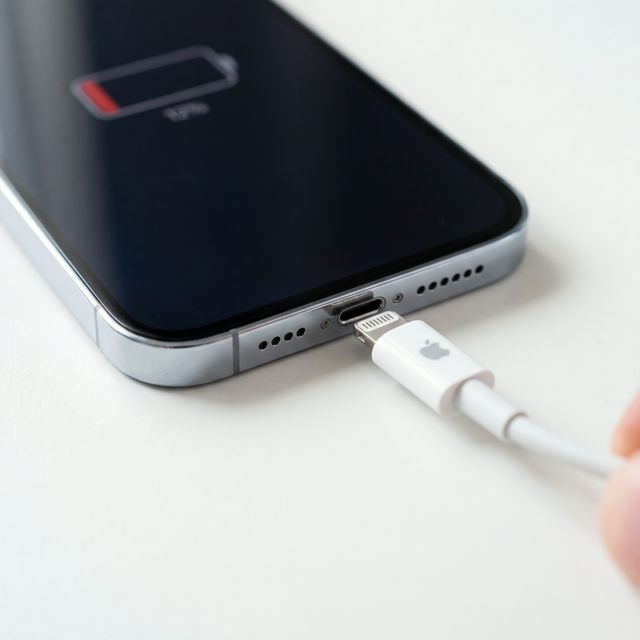
If your iPhone won’t charge after getting wet, it’s likely because Apple’s built-in moisture detection has triggered a safety lockout. Starting with iPhone XS, Apple placed liquid contact indicators (LCIs) inside the Lightning and USB-C ports. When moisture is detected, the iPhone displays a “Liquid Detected” alert and disables charging to prevent short-circuit damage to the charging pins.
This is actually a protective feature working as intended — not a malfunction. Here’s how to resolve it safely.
Step 1: Don’t Force It
When you see the “Charging Not Available — Liquid has been detected” alert, do not:
- Override the warning by selecting “Emergency Override” unless you’re in a genuine emergency (phone below 5% and no other charging option)
- Insert a wireless charger immediately — Qi charging is usually still functional but can trap moisture between the phone and pad
- Blow into the port — your breath contains moisture
- Use compressed air at high pressure — this can push water deeper into the port assembly
Step 2: Clear the Charging Port
Physical Moisture Removal
- Tap gently — Hold the phone with the Lightning/USB-C port facing down and tap it firmly against your palm. This uses gravity and impact force to dislodge loose water.
- Blot with a lint-free cloth — Twist a corner of a microfiber cloth into a point and gently insert it into the port opening. Do NOT use cotton swabs — they can leave fibers that attract more moisture.
- Leave in an airflow area — Place the phone port-down in front of a cool (not hot) fan for 30 minutes. Apple’s official support documentation recommends this over any other drying method.
What About Rice?
Apple explicitly advises against placing your iPhone in rice. From Apple’s official support page: “Don’t dry your iPhone using an external heat source or compressed air. Don’t insert a foreign object into the connector. Don’t put your iPhone in a bag of rice.” Rice dust and starch can contaminate the port.
Step 3: Wait for the All-Clear
In most cases, the moisture alert clears on its own within 30 minutes to a few hours. Apple’s own documentation states that if your iPhone has been exposed to liquid, you should wait at least 5 hours before attempting to charge via the port.
Timeline by exposure type:
| Exposure | Typical Recovery Time |
|---|---|
| Light splash | 30 minutes – 1 hour |
| Rain exposure | 1–3 hours |
| Brief submersion (< 30 seconds) | 2–5 hours |
| Extended submersion (pool, sink) | 5–24 hours |
Step 4: Alternative Charging Methods
While waiting for the port to dry:
- MagSafe / Qi wireless charging — Usually works even when the Lightning/USB-C port is locked out. Wipe the back of the phone dry first.
- Power off to conserve battery — If you can’t charge at all, turning the phone off dramatically extends remaining battery life.
When the Port Won’t Dry
If the moisture alert persists after 24 hours:
- Check for debris — Lint, pocket dust, and sand can trap moisture in the port. Use a plastic (non-metallic) SIM-eject tool or toothpick to gently inspect and clear debris.
- Isopropyl alcohol flush — A single drop of 90%+ isopropyl alcohol in the port can displace trapped water. Isopropyl alcohol evaporates much faster than water and won’t trigger the moisture sensor once dry. (This is a common technique used by Apple-authorized repair technicians.)
- Force restart — Sometimes the moisture sensor gets stuck in a triggered state. Force restart your iPhone:
- iPhone 8 and later: Press Volume Up, then Volume Down, then hold Side button until Apple logo appears
- iPhone 7: Hold Volume Down + Sleep/Wake until Apple logo appears
Speaker and Port: A Connected Problem
On many iPhones, the speaker grille is adjacent to the charging port. Water that enters the speaker often also reaches the port, and vice versa. If your iPhone’s speaker also sounds muffled, address both issues:
- First, use Speaker Cleaner’s acoustic method to eject water from the speaker grille
- Then follow the port-drying steps above
This combination resolves the majority of post-water iPhone issues without any trip to the repair shop.
Preventing Future Charging Issues
- Dry your phone before charging — Always check that the port area is dry before plugging in
- Use MagSafe as backup — Having a wireless charger available means water in the port is never an emergency
- Invest in a waterproof case — Especially for beach, pool, and gym use
- Clean the port regularly — Compacted lint reduces airflow and slows port drying
When to Contact Apple Support
Contact Apple or visit an Apple Store if:
- The moisture alert persists beyond 48 hours despite drying
- The phone shows no charging response from both wired and wireless methods
- You see visible corrosion (green/white residue) inside the port
- The phone was submerged in saltwater — salt accelerates corrosion and may require professional cleaning